
RAN Client user manual
Resource Assistance Navigator: the free app for getting food assistance with one QR code
App version 1.1.9+21
1. About RAN
RAN (Resource Assistance Navigator) is a free app for people who need support. You enter your household information once; the app turns it into a QR code. At a participating agency (food pantry, church, partner), you show that QR code and the agency scans it — no forms to fill in at every visit.
- The app is free for everyone. It shows some advertising; the ads are not from USDA or your support network.
- Your information is stored only on your phone. It travels inside the QR code, encrypted, to the agency's scanner (see "Your privacy").
- The app works in English and Spanish.
- You can pick up food yourself (Self Pickup) or send someone in your place (Proxy Pickup).
This manual describes app version 1.1.9+21. The pictures show an example household ("John Doe"); your screens show your own information and your support network.
Which agencies take part, and where, is on gra4u.org/participating-agencies. The income limits for TEFAP are on gra4u.org/eligibility.
2. Installing the app
- On an iPhone, open the App Store; on Android, open Google Play. Or scan the QR code on gra4u.org with your phone's camera to open the app's download page.
- Search for Resource Assistance Navigator (RAN) and install it. It costs nothing.
- Open the app. The first start takes about two minutes (next section).
Keep the app updated: when the store offers an update, install it.
3. The first start
The first time you open the app, it asks for your language, your main household information, a signature and your support network. You do this only once; later the app starts directly at the main menu.
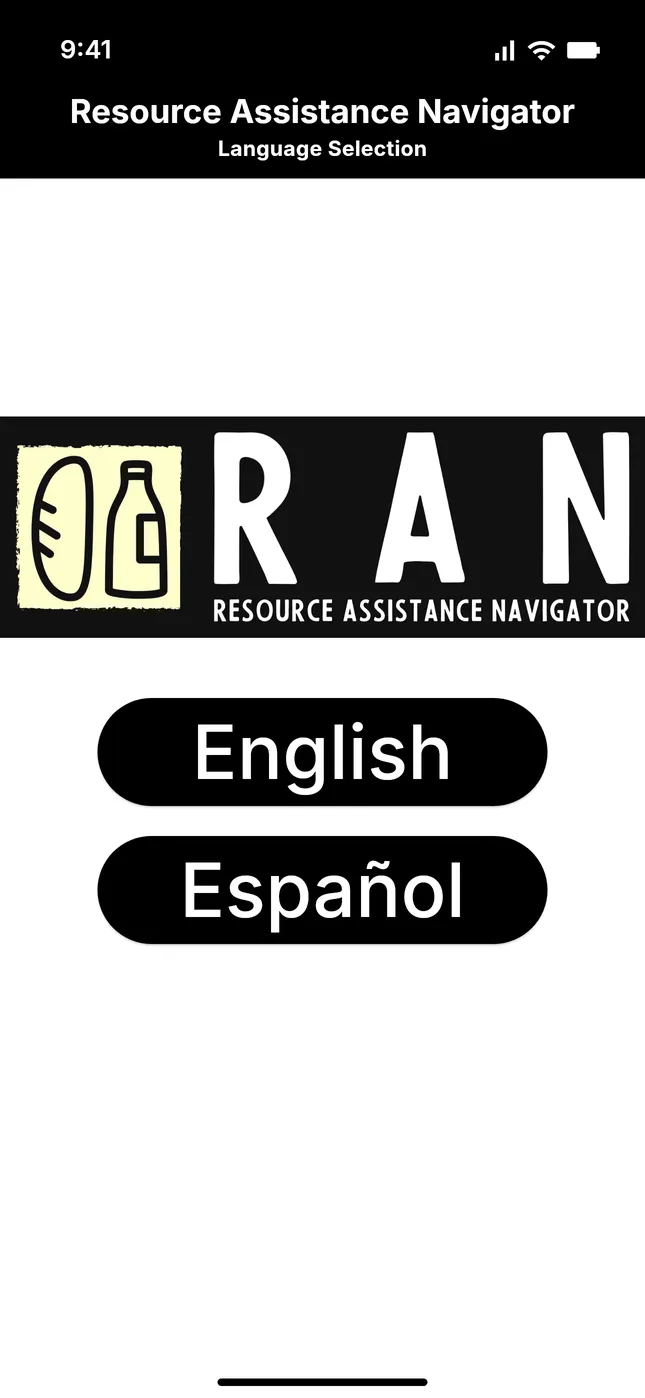
1. Choose your language
Tap English or Español. You can change it later in the menu (see "The menu").
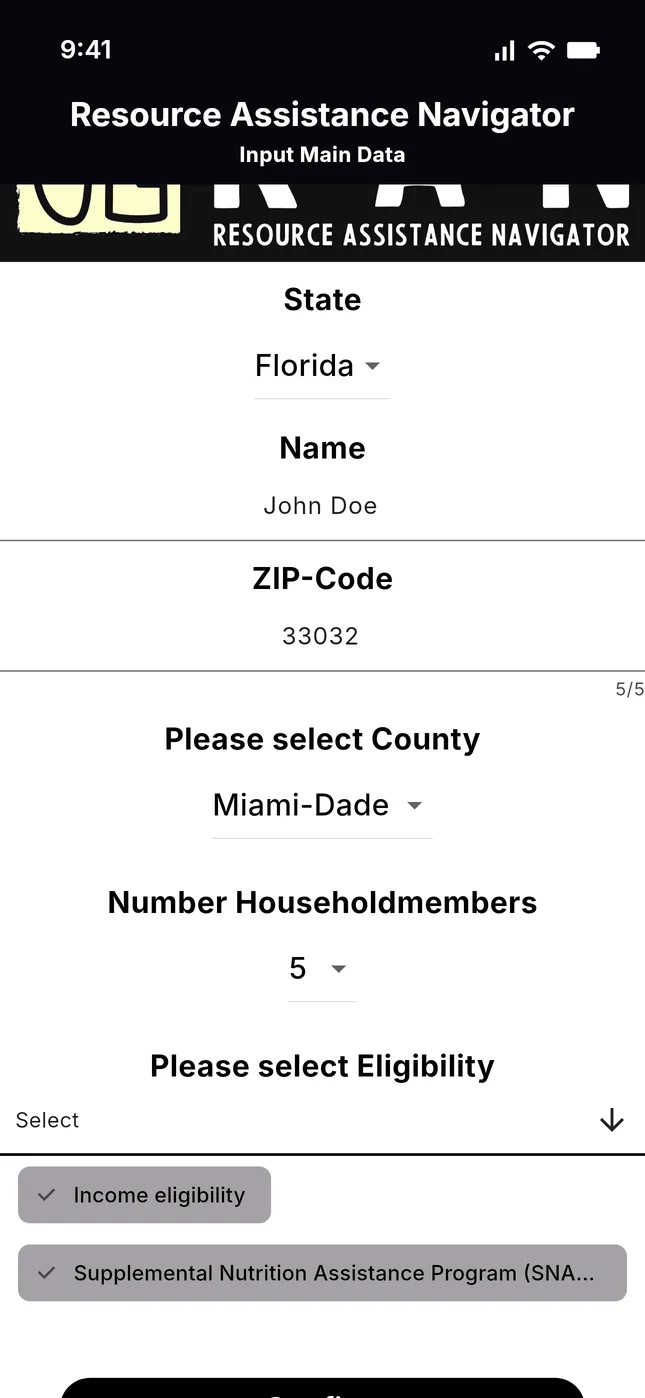
2. Enter your main information
- Tap Name and type the name of your household (for example your own name).
- Tap ZIP-Code and type your 5-digit ZIP code.
- Check State and choose your County from the list.
- Choose the Number Householdmembers: everyone who lives in your household, including you.
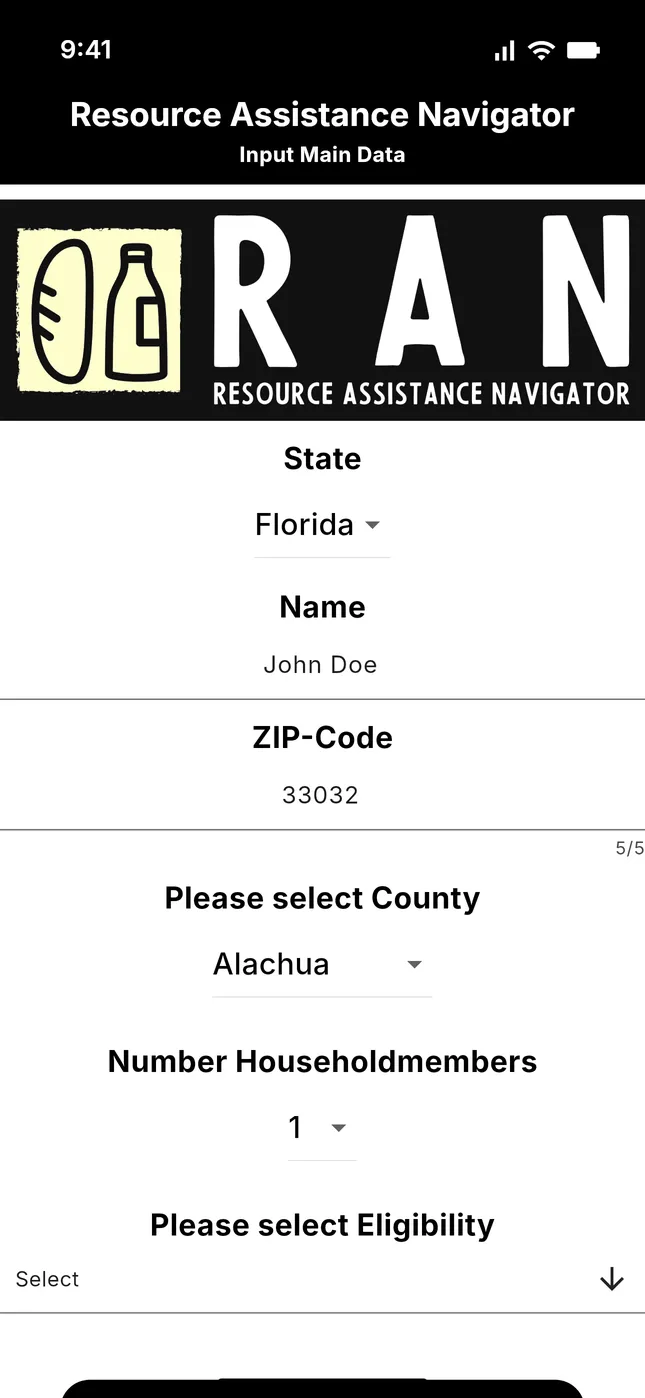
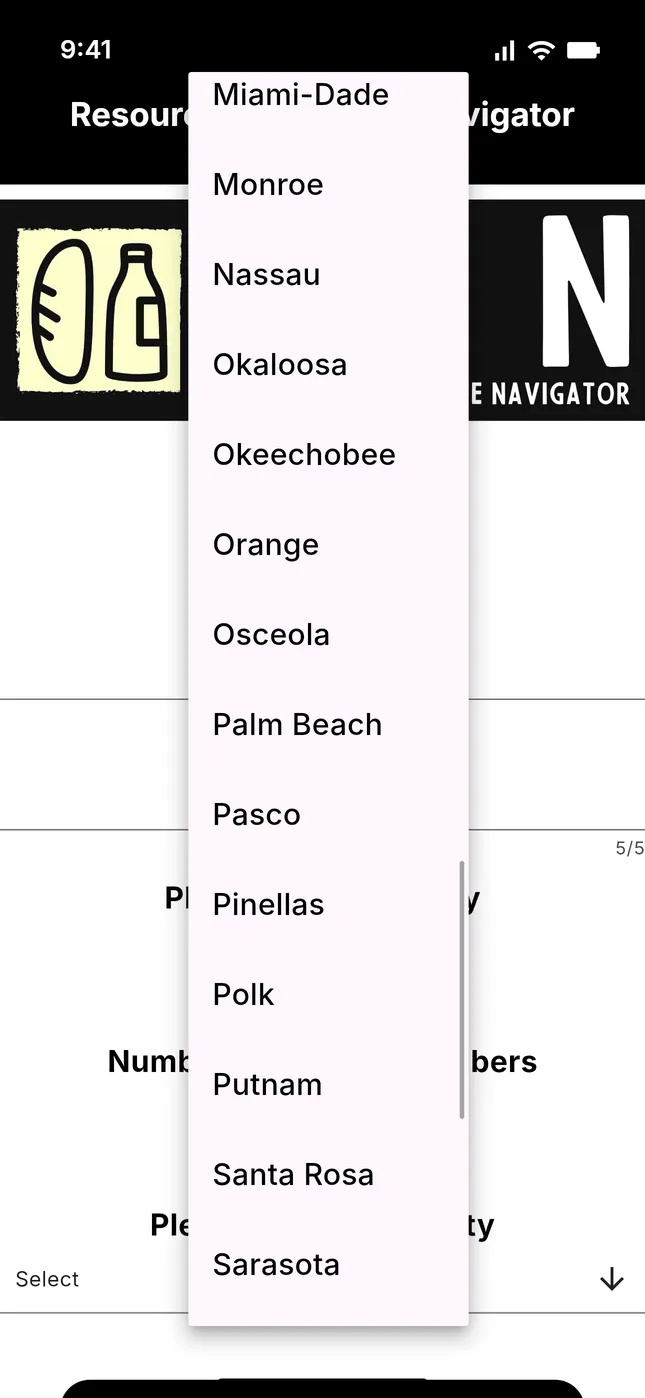
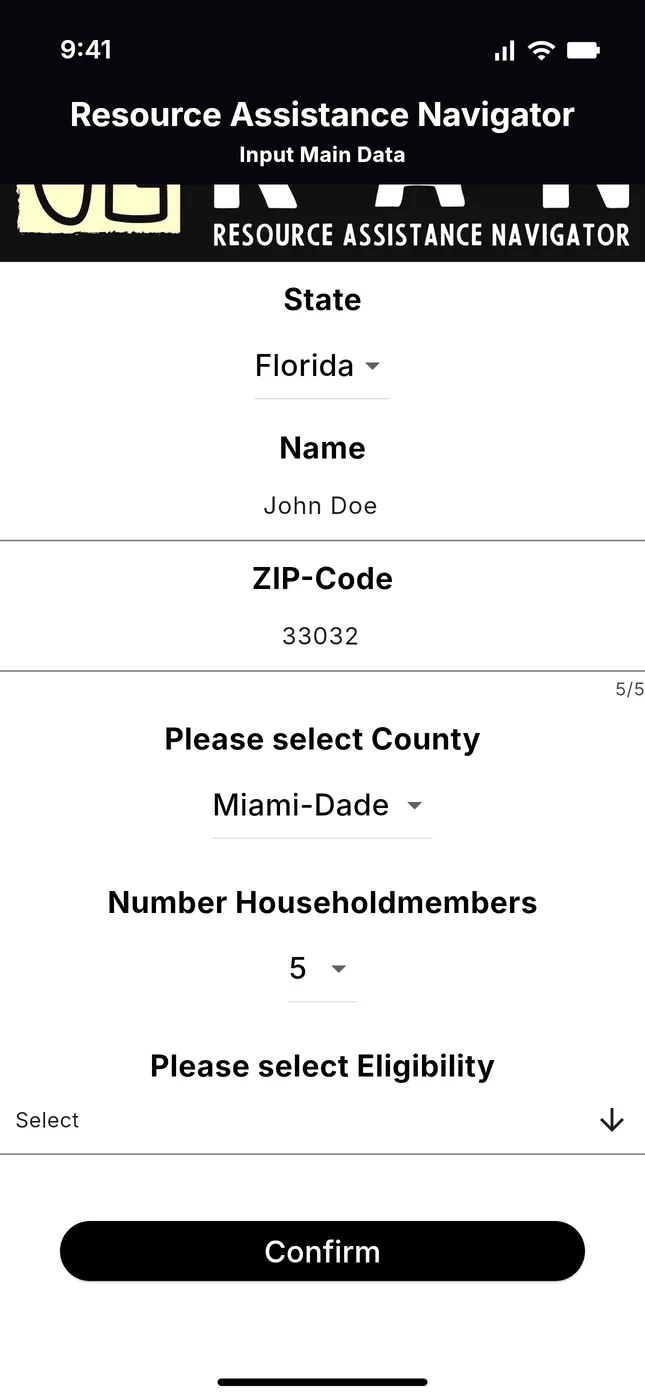
County and household size already show a value when you start (the first county in the list and 1). Check that both are right before you continue.
3. Choose your assistance programs
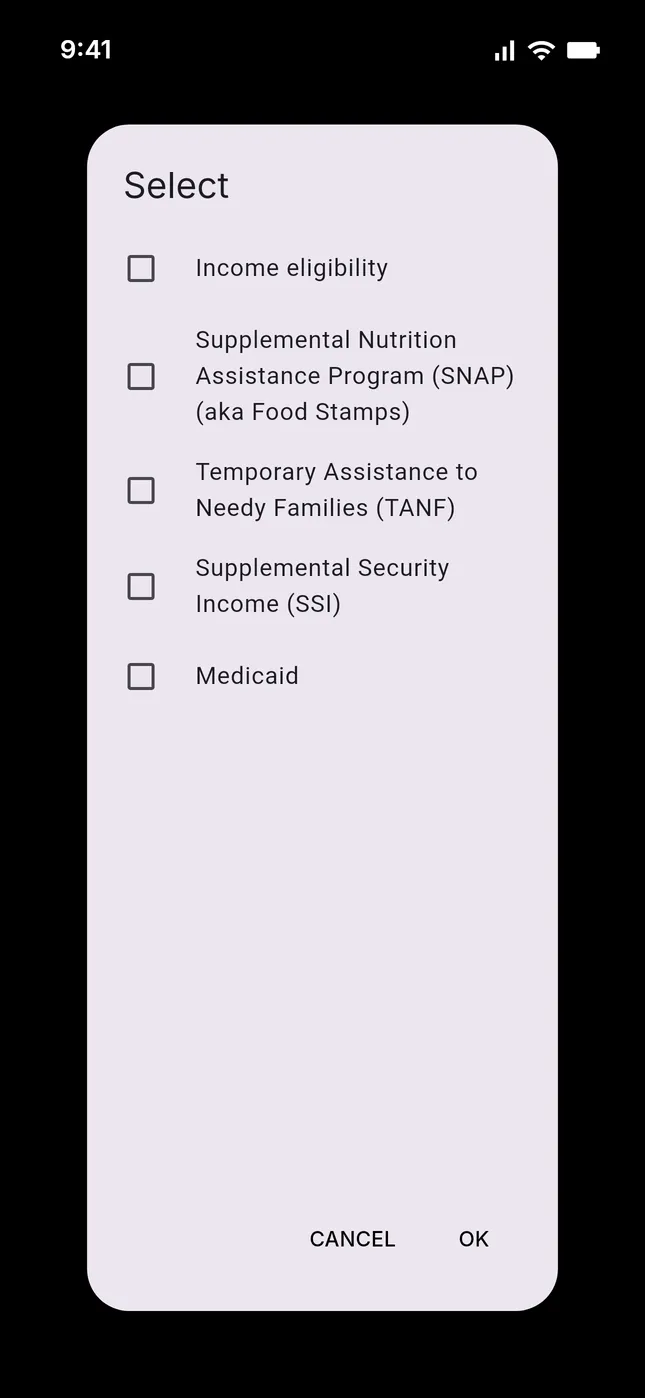
Under the household size, tap Select and tick every program that applies to your household, then tap OK.
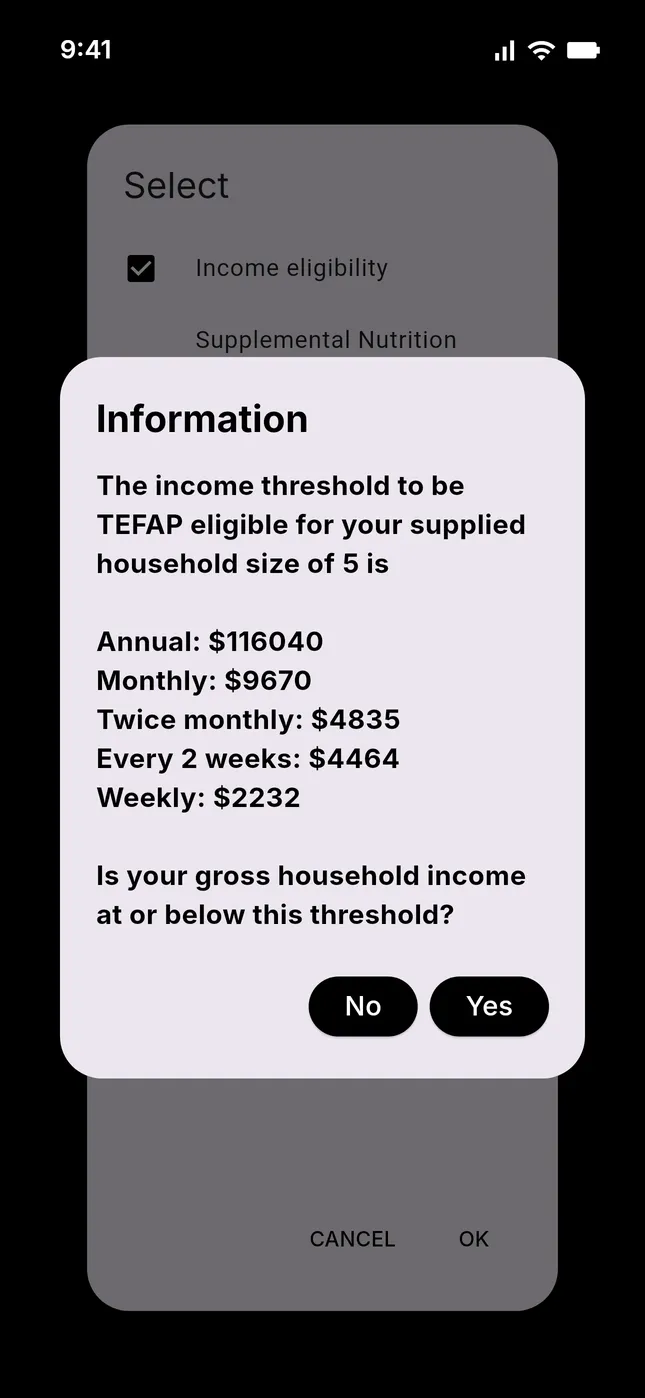
When you tick Income eligibility, the app shows the TEFAP income limit for your household size — per year, month, half month, two weeks and week. Tap Yes if your gross household income is the same or lower; otherwise tap No.
4. Confirm
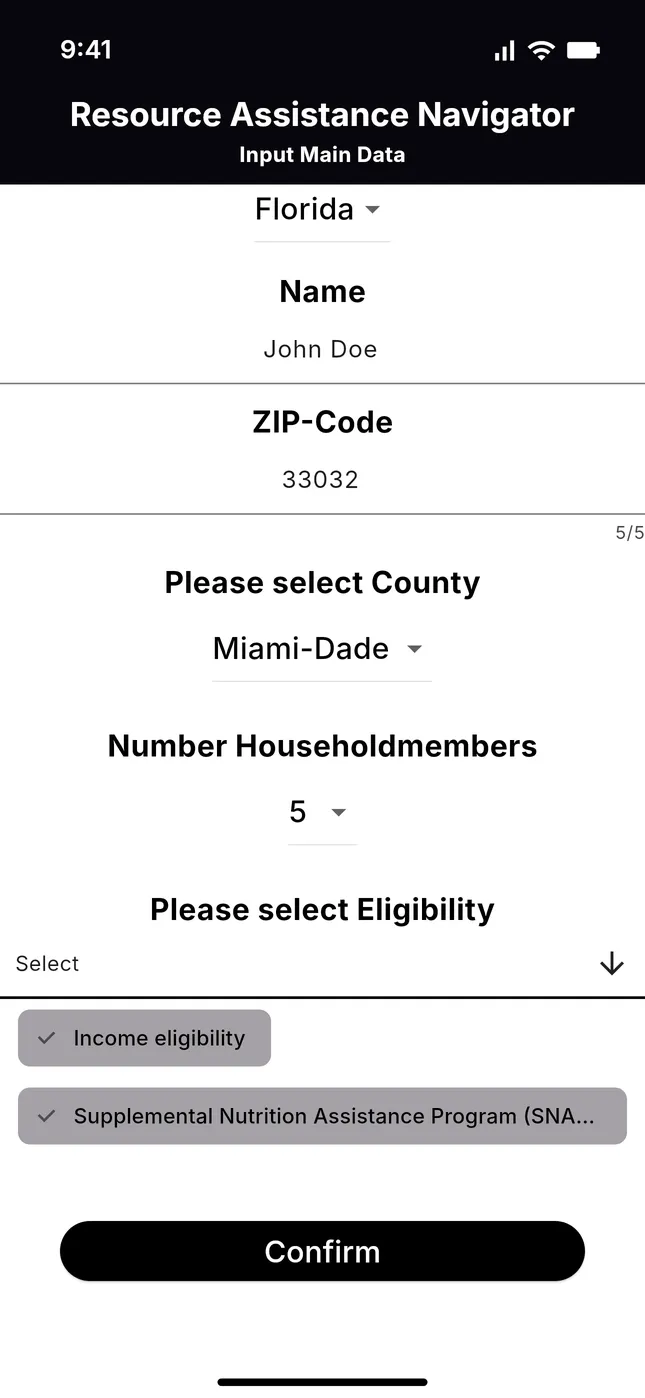
Scroll down to the end of the page and tap Confirm. If the name, a 5-digit ZIP code or a program is missing, the app tells you what to fix.
5. Sign
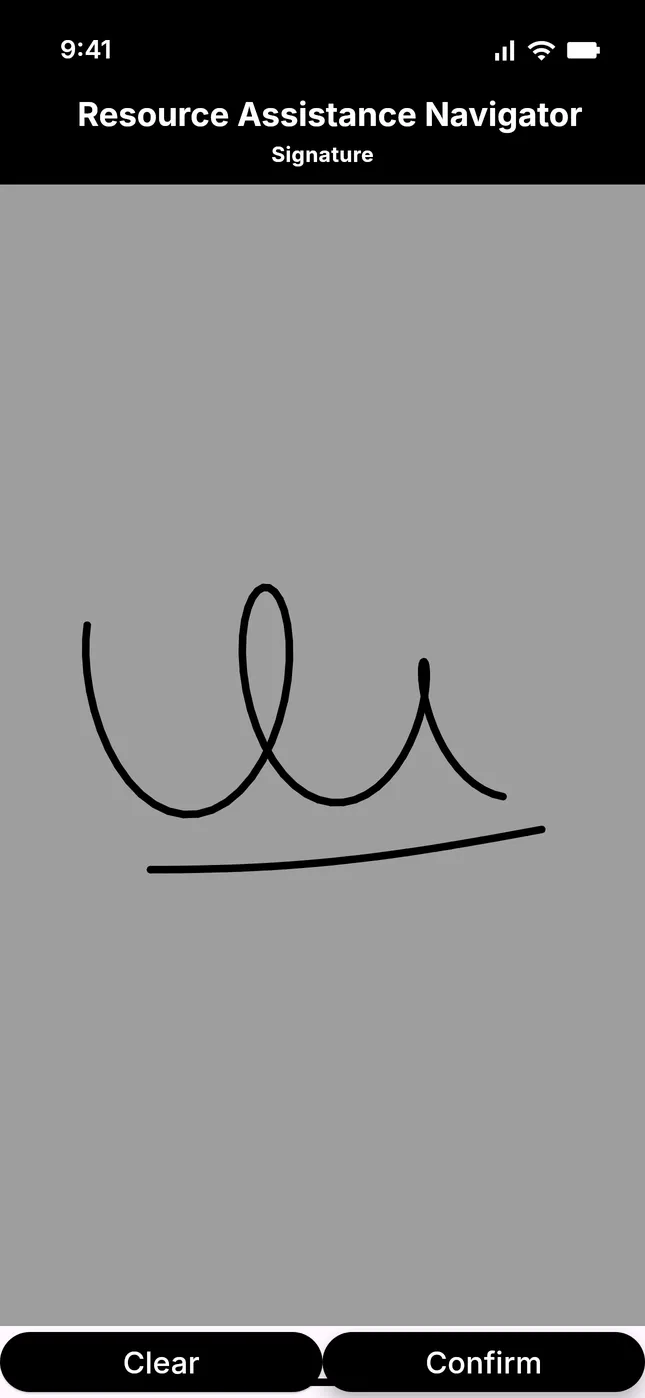
Sign in the white field with your finger. Clear starts again. Then tap Confirm.
6. Choose your support network
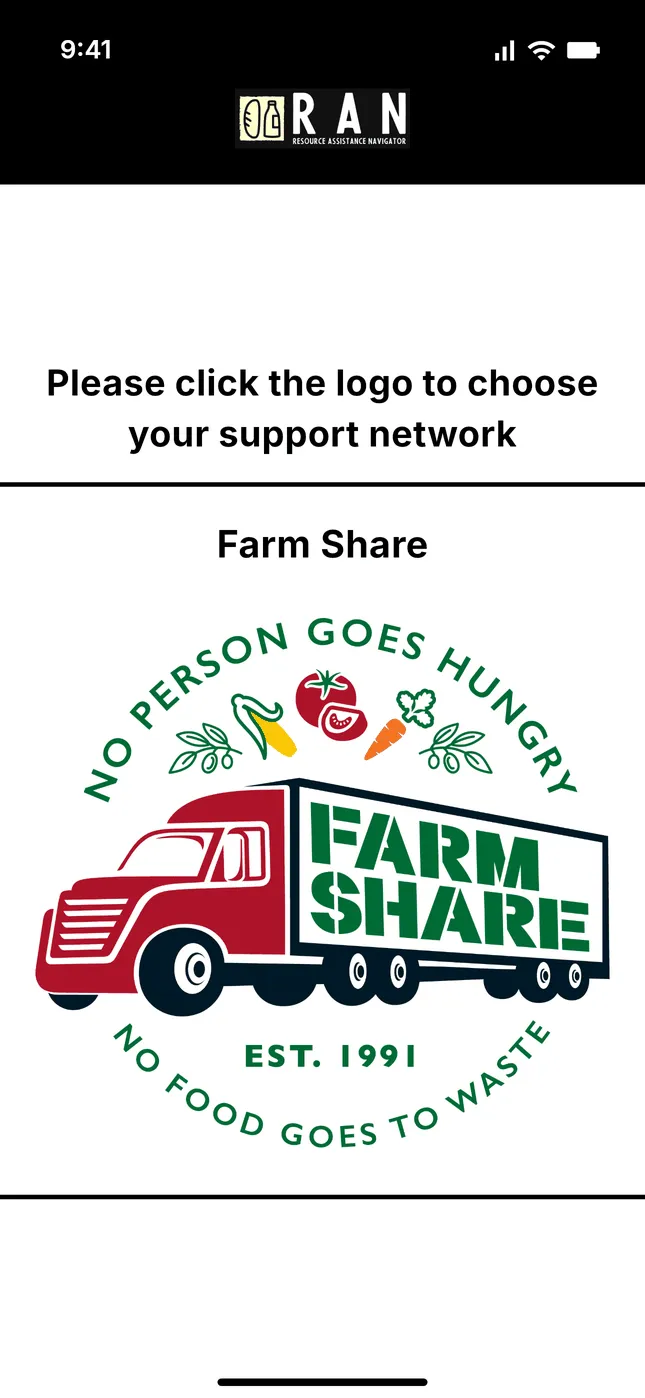
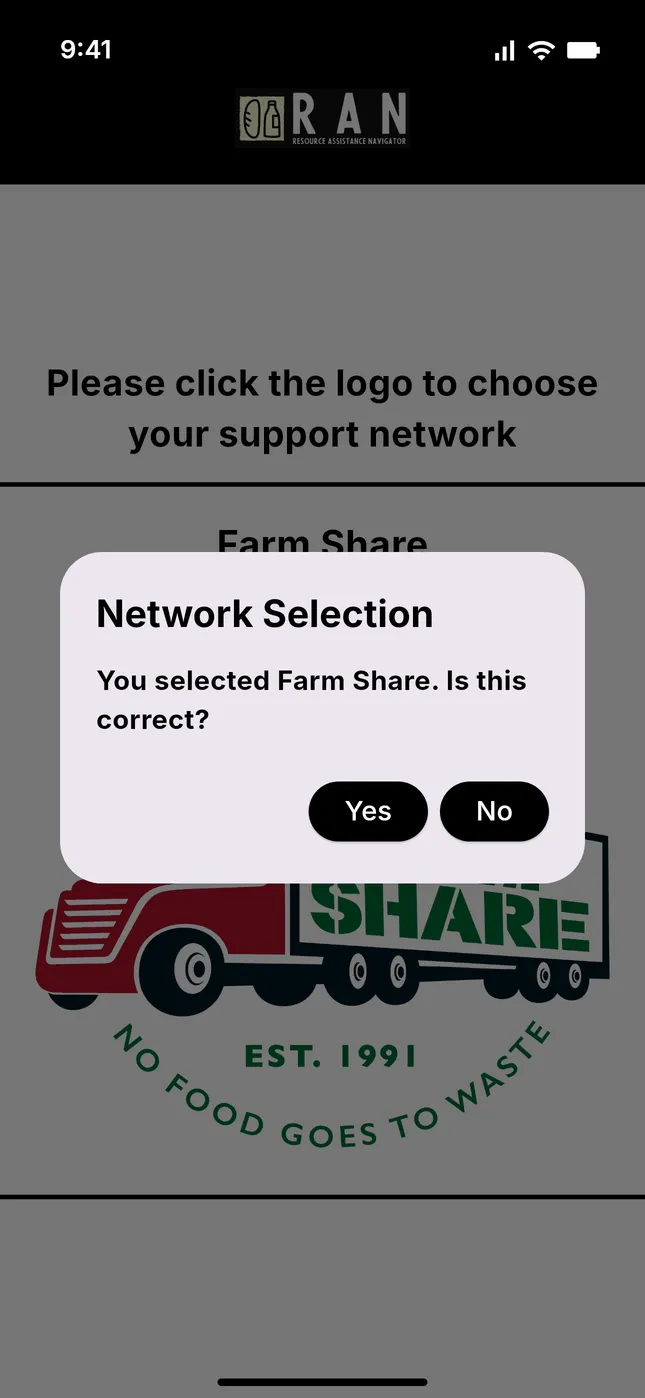
Tap the logo of your support network (for example Farm Share) and confirm with Yes. The main menu opens.
4. The main menu
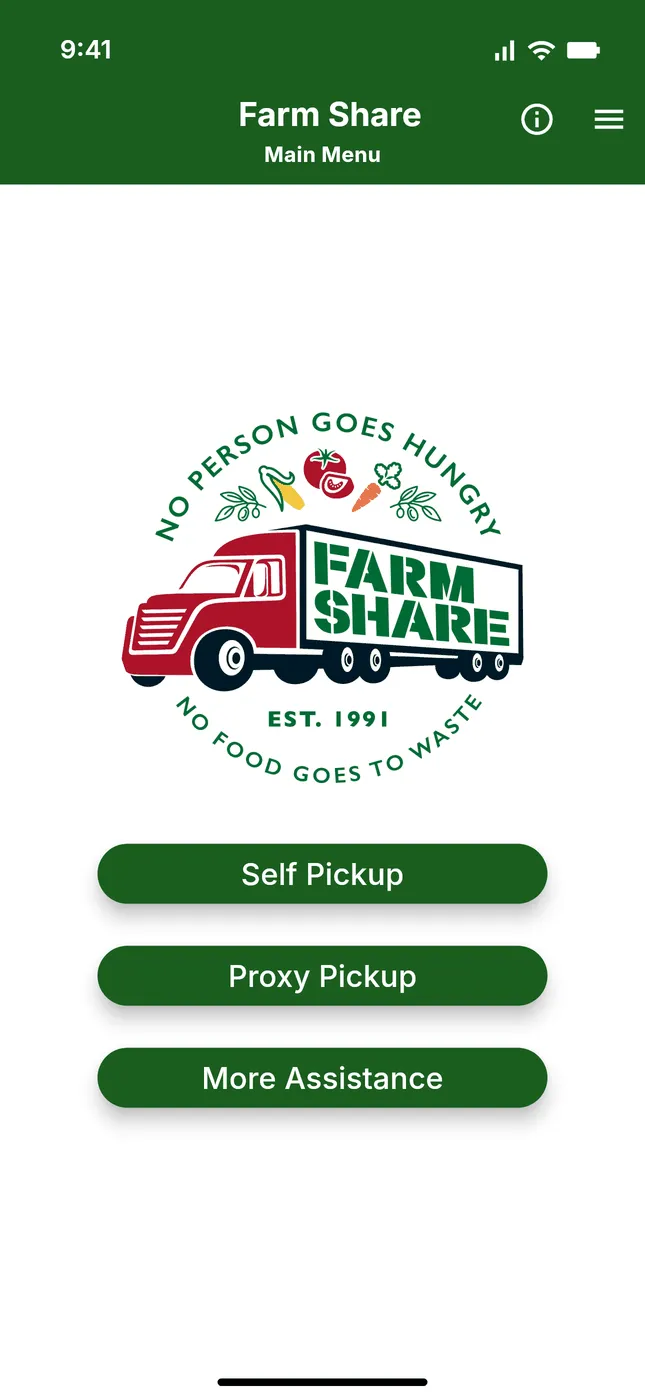
| Button | What it does |
|---|---|
| Self Pickup | Shows your QR code when you pick up food yourself. See "Picking up food yourself". |
| Proxy Pickup | Makes a QR code for someone you send in your place. See "Sending someone in your place". |
| More Assistance | A list of partner organizations of your support network that offer further help. Tapping one opens its web page. |
| ⓘ (top right) | Your household name, your client ID and today's date. |
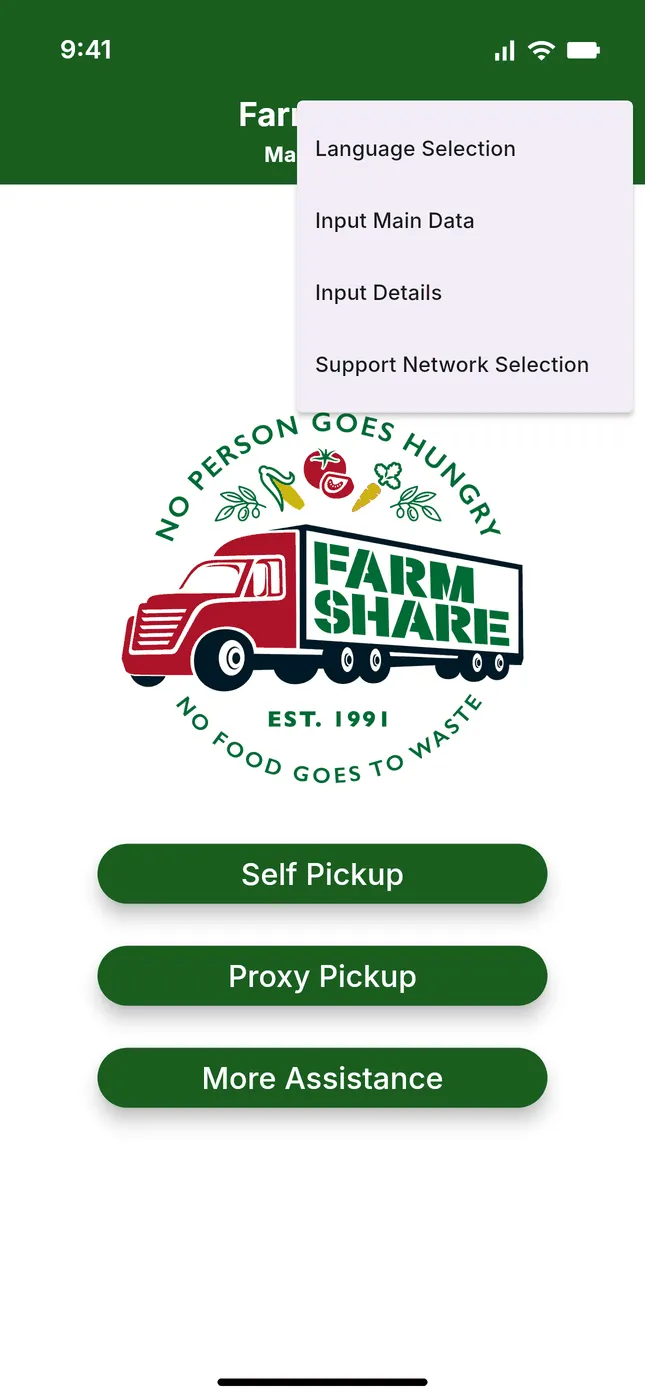
| ☰ (top right) | The menu: language, main information, household details and support network. See "The menu". |
5. When you open the app again
From the second start on, the app opens at the main menu and first asks Changes? — whether any of your household information has changed since you last used the app.
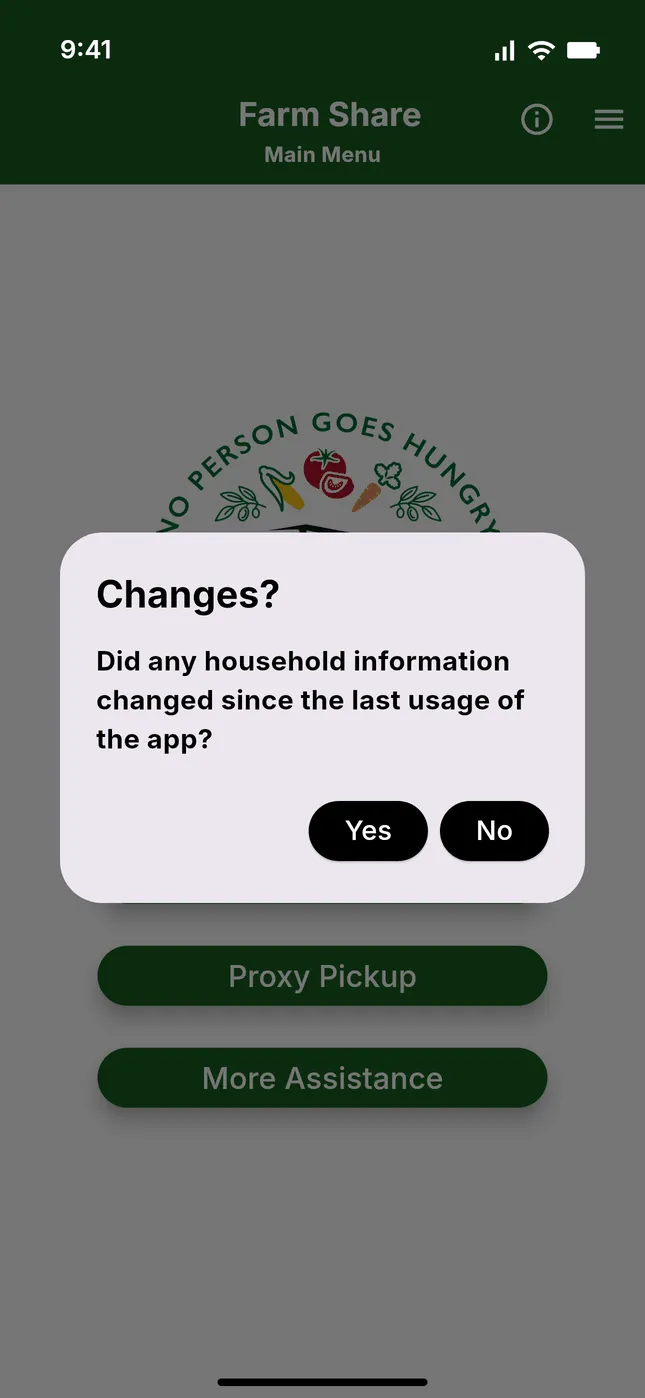
- Yes — something has changed (people moved in or out, new address, a program started or ended). The app opens your main information so you can correct it; then confirm and, if asked, sign again.
- No — everything is still correct. You go straight to the main menu.
Please answer honestly. Agencies and food banks use this information for their reports; keeping it up to date helps them get food and programs to your area.
6. Picking up food yourself (Self Pickup)
- In the main menu, tap Self Pickup.
- Read the Attention notice about advertising and tap Continue. An advertisement may be shown next; close it to go on.
- The Statements page opens: the certification statement and the USDA nondiscrimination statement. Read them, scroll down, tick I have read the above statement and tap Continue.
- Your QR code is shown. At the agency, show this screen so they can scan it.
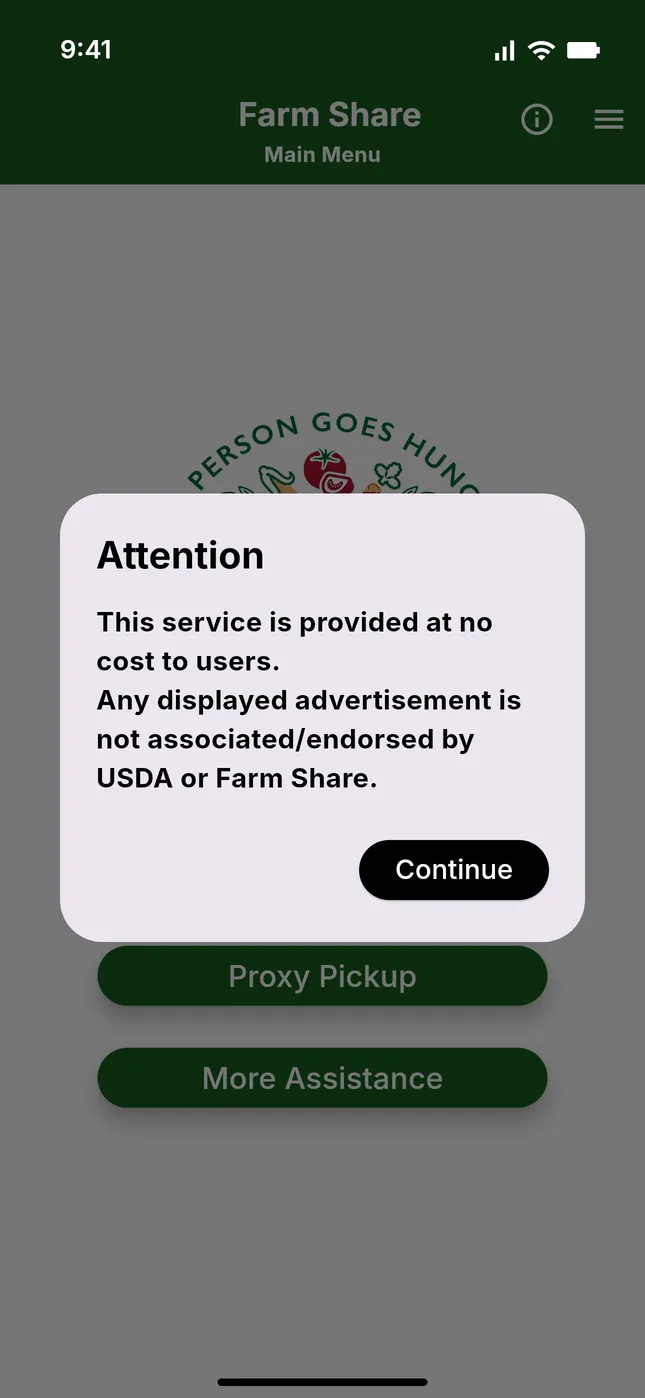
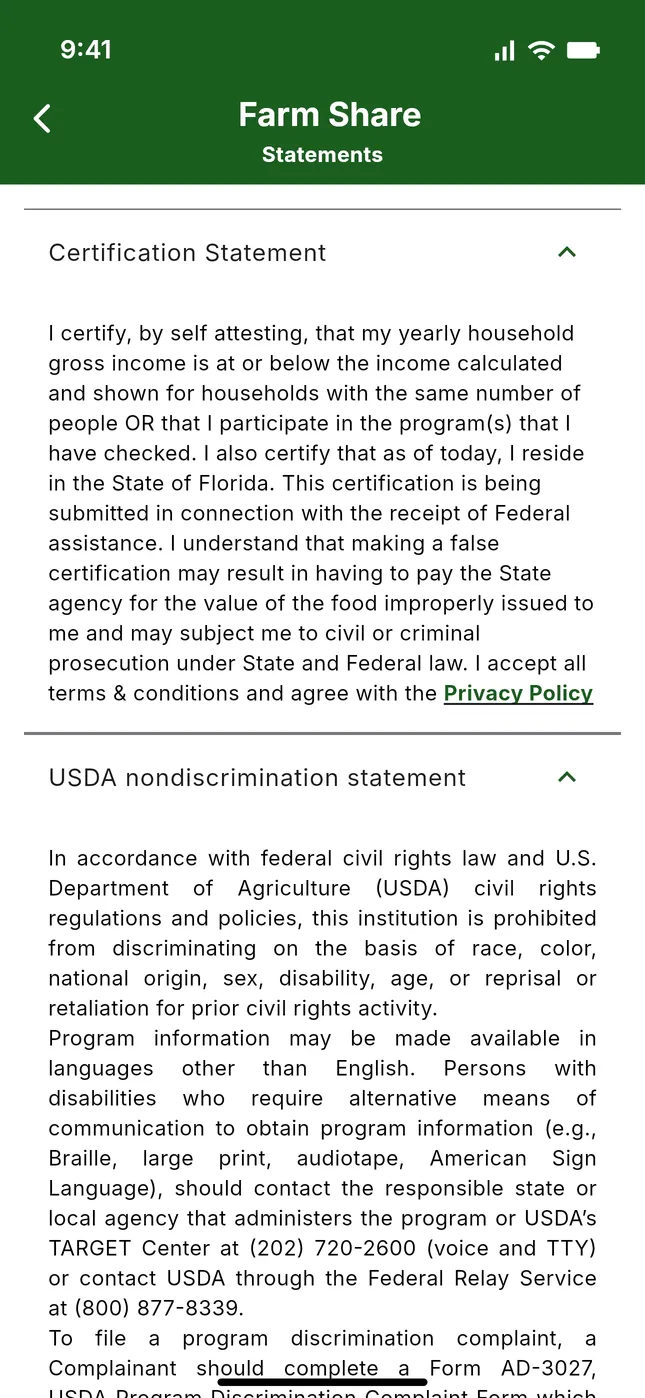
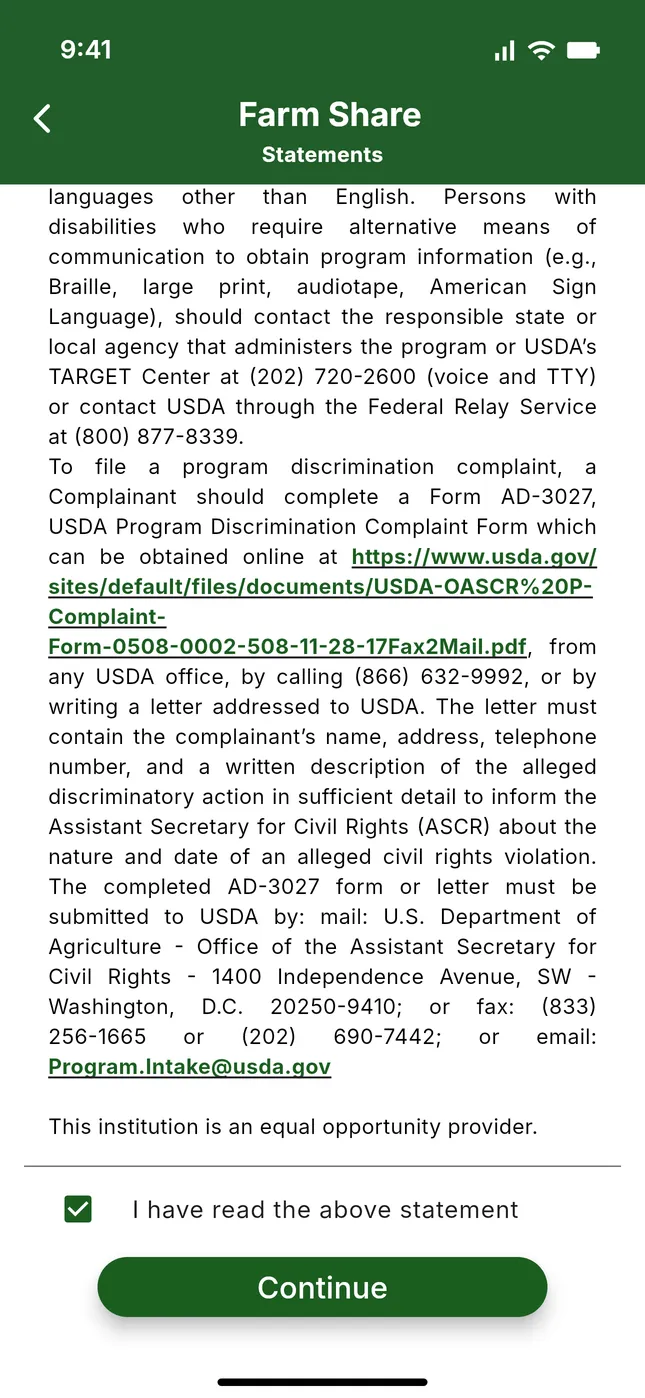
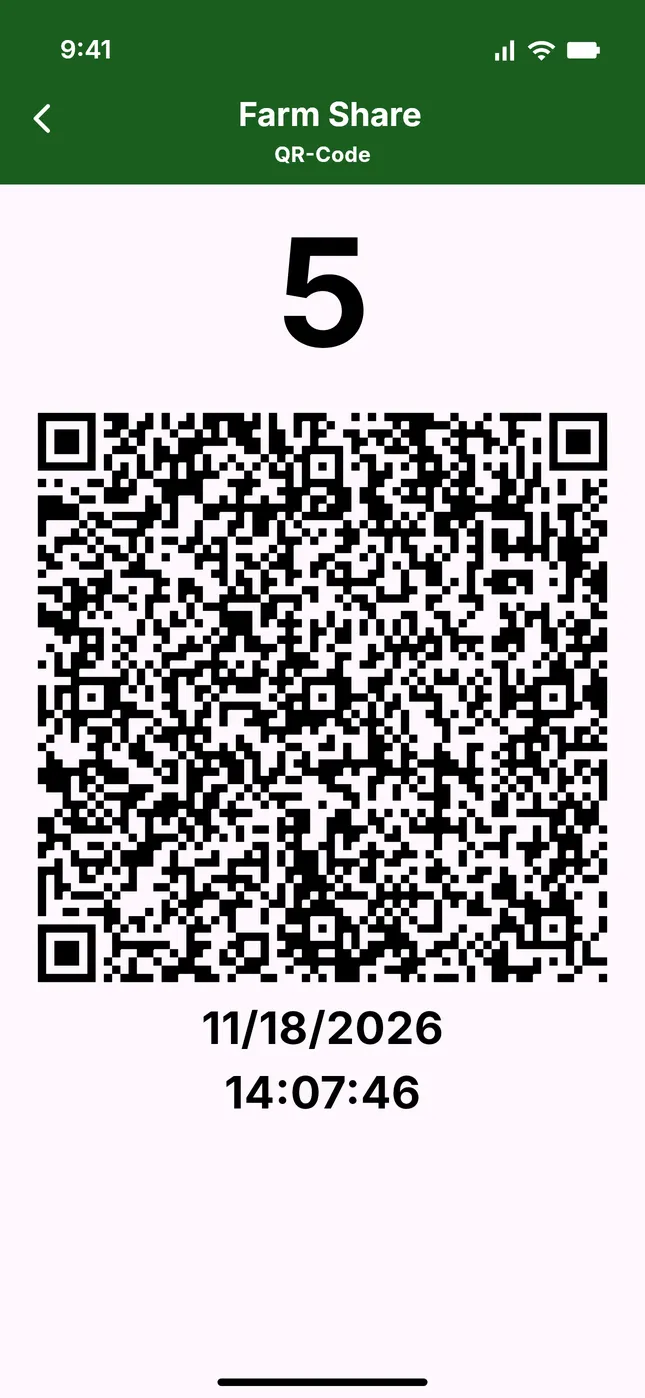
What the QR screen shows
- The large number at the top is the number of people in your household.
- The QR code carries your household information, encrypted.
- Under it, today's date and the time, which keep running — so the agency can see it is a live screen, not a photo.
Turn up the screen brightness if the scanner has trouble reading the code.
7. Sending someone in your place (Proxy Pickup)
If you can't go yourself, you can authorize another person (a proxy) to pick up for you today. The proxy gets a picture of a QR code with their name on it.
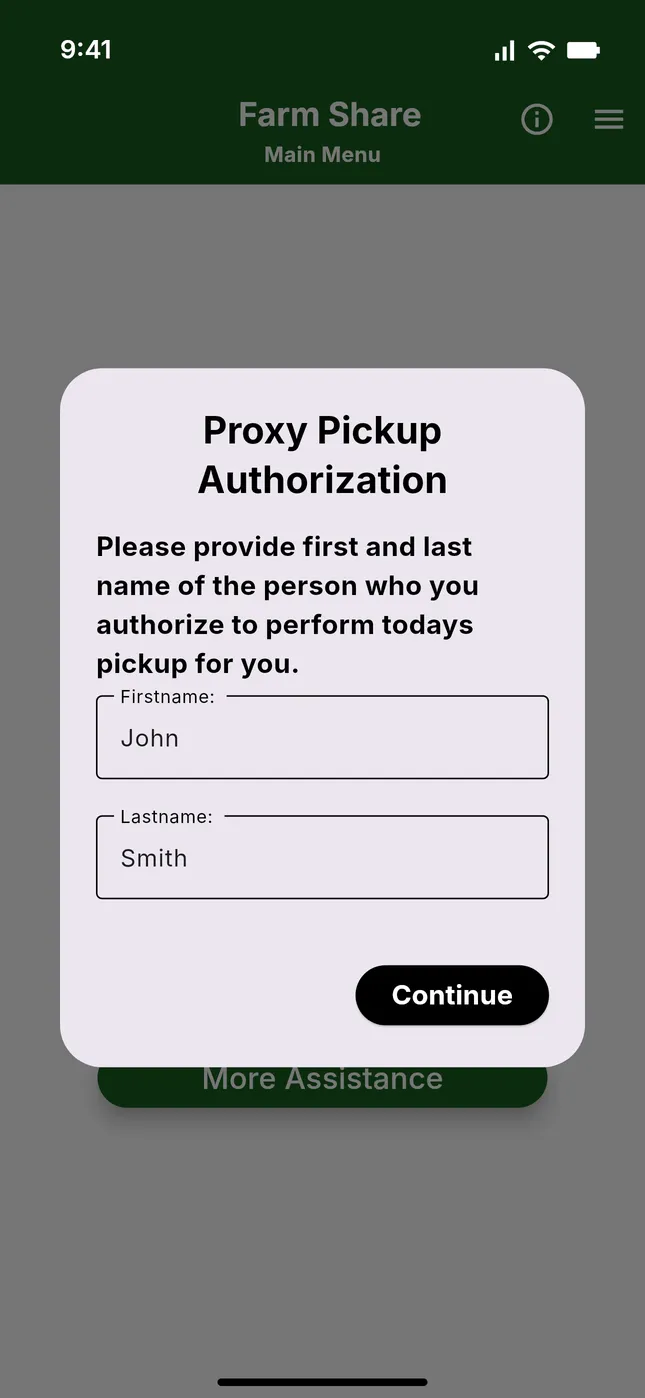
- In the main menu, tap Proxy Pickup.
- Enter the first name and last name of the person who picks up for you and tap Continue.
- Read the Attention notice and the Statements and continue, as for Self Pickup.
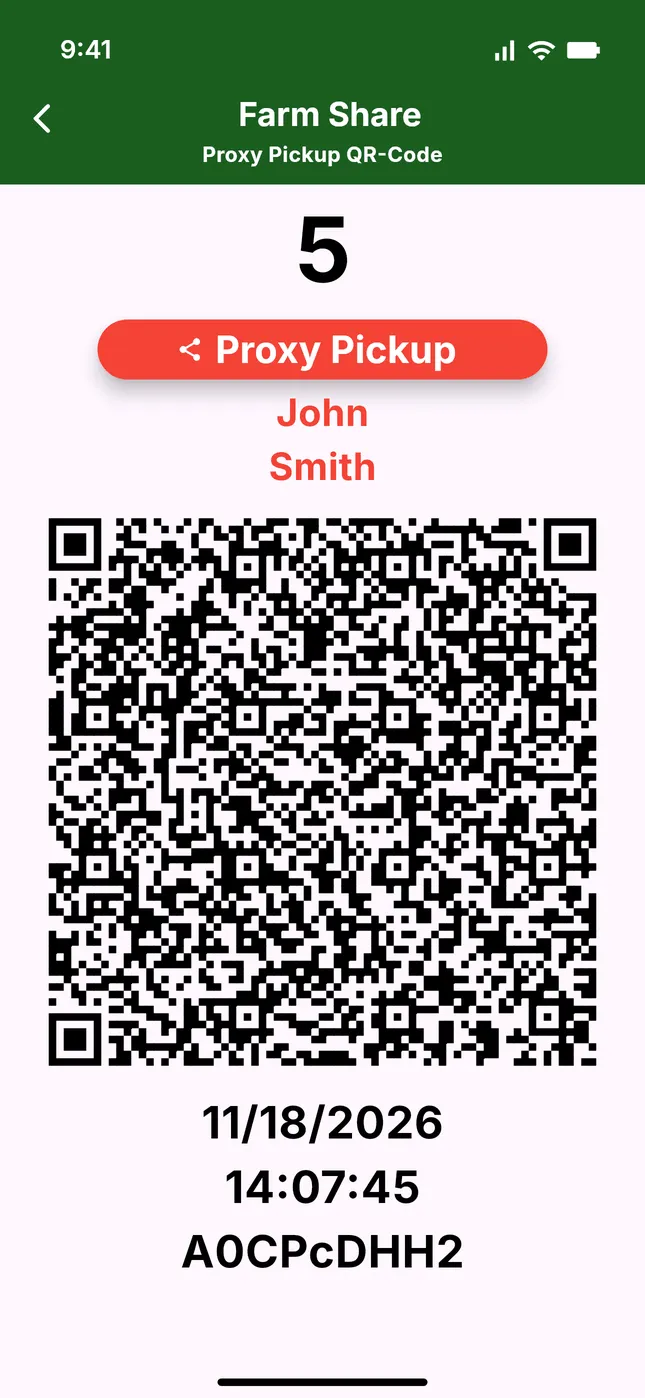
- The Proxy Pickup QR-Code opens, with the proxy's name above the QR code.
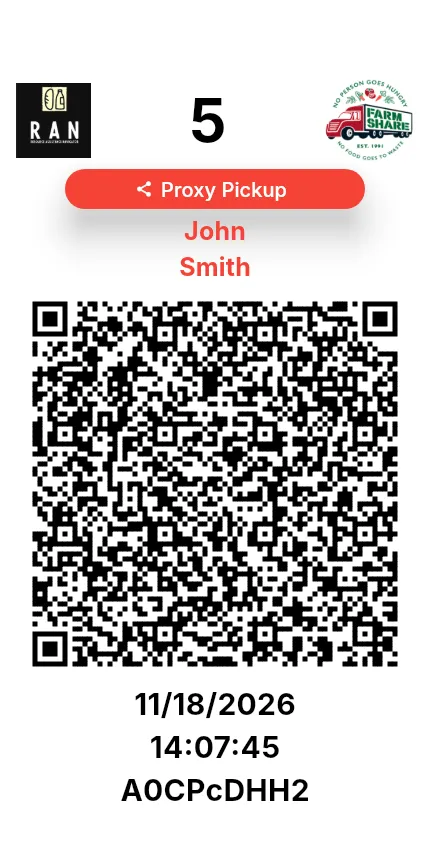
- Tap the red Proxy Pickup button above the code. Your phone's share menu opens: send the picture by text message, email or any messenger app.
- The proxy shows the picture at the agency, which scans it like your own QR code.
The authorization is for today's pickup. Make a new one for every proxy pickup.
8. Household details (optional)
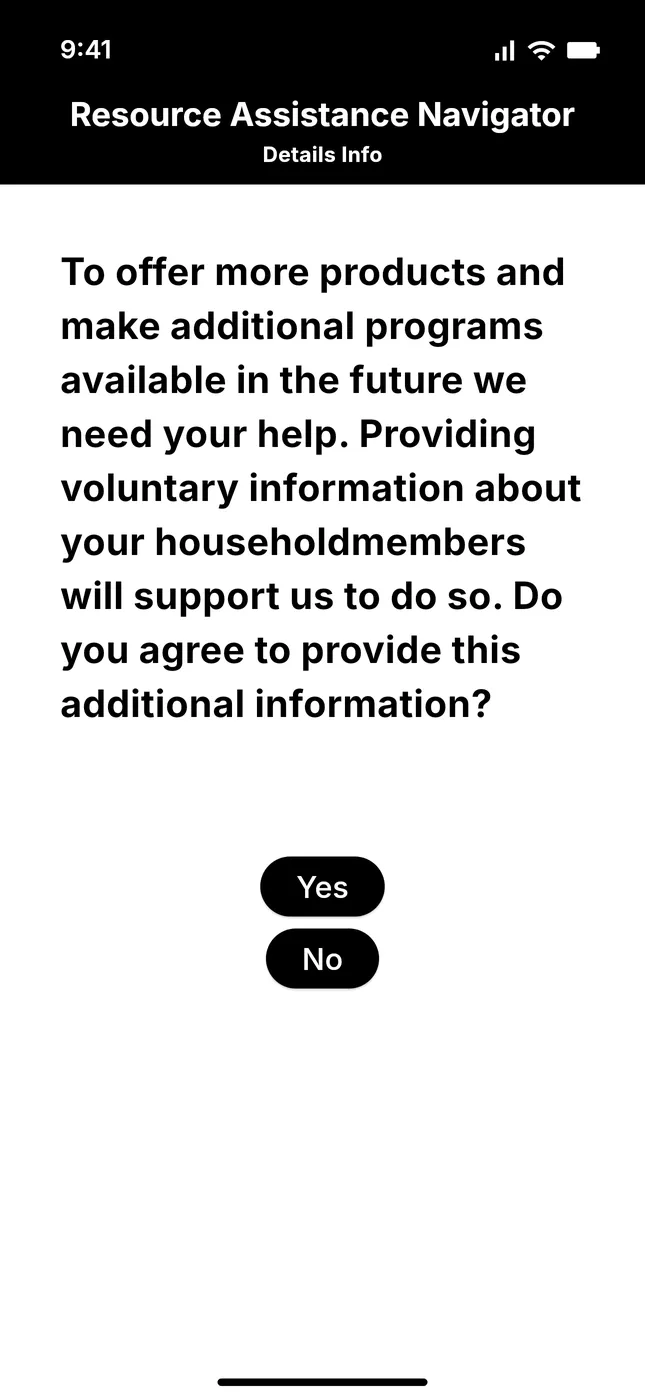
You can add voluntary details about each member of your household. This information helps your support network offer more products and bring additional programs to your area. It is not needed for picking up food.
- In the main menu, tap ☰ (top right) and choose Input Details.
- Read the question and tap Yes if you agree to give the information.
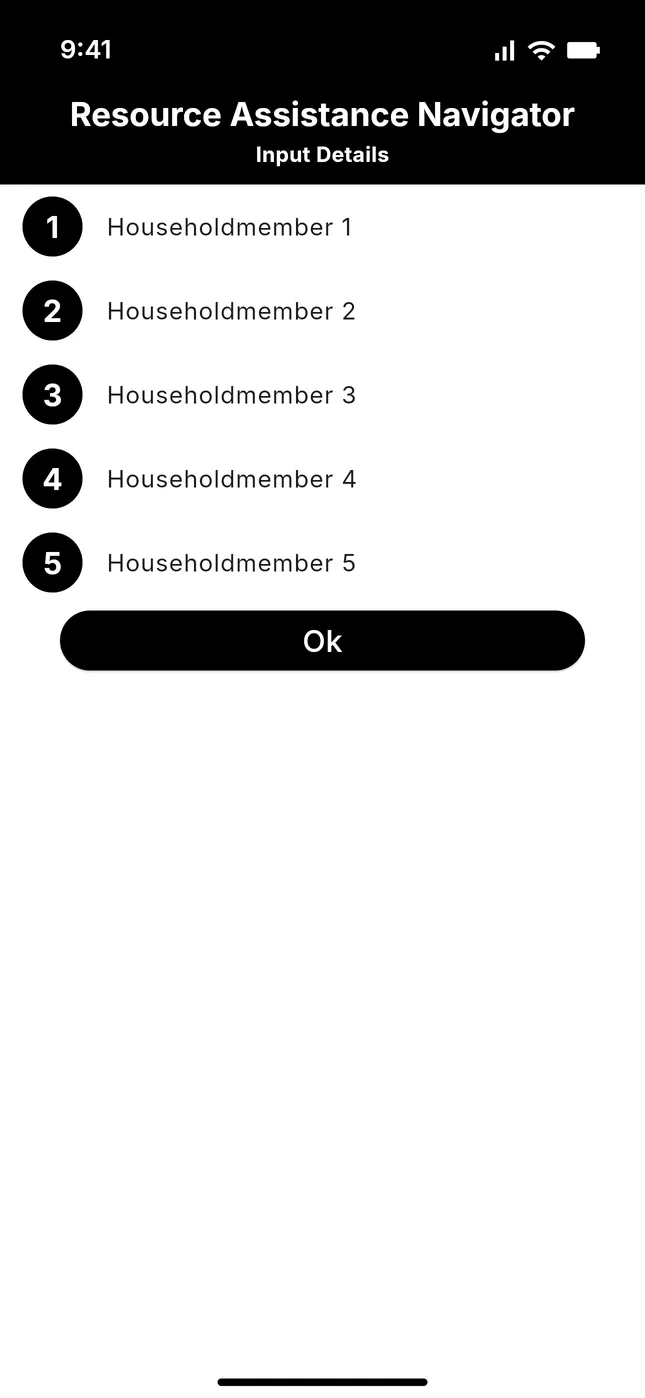
- Tap a household member (Householdmember 1, Householdmember 2, …).
- For each field, tap it and choose an answer: year of birth, sex, employment, health insurance, education, race, veteran status and disability status.
- Go back with ← and do the next member.
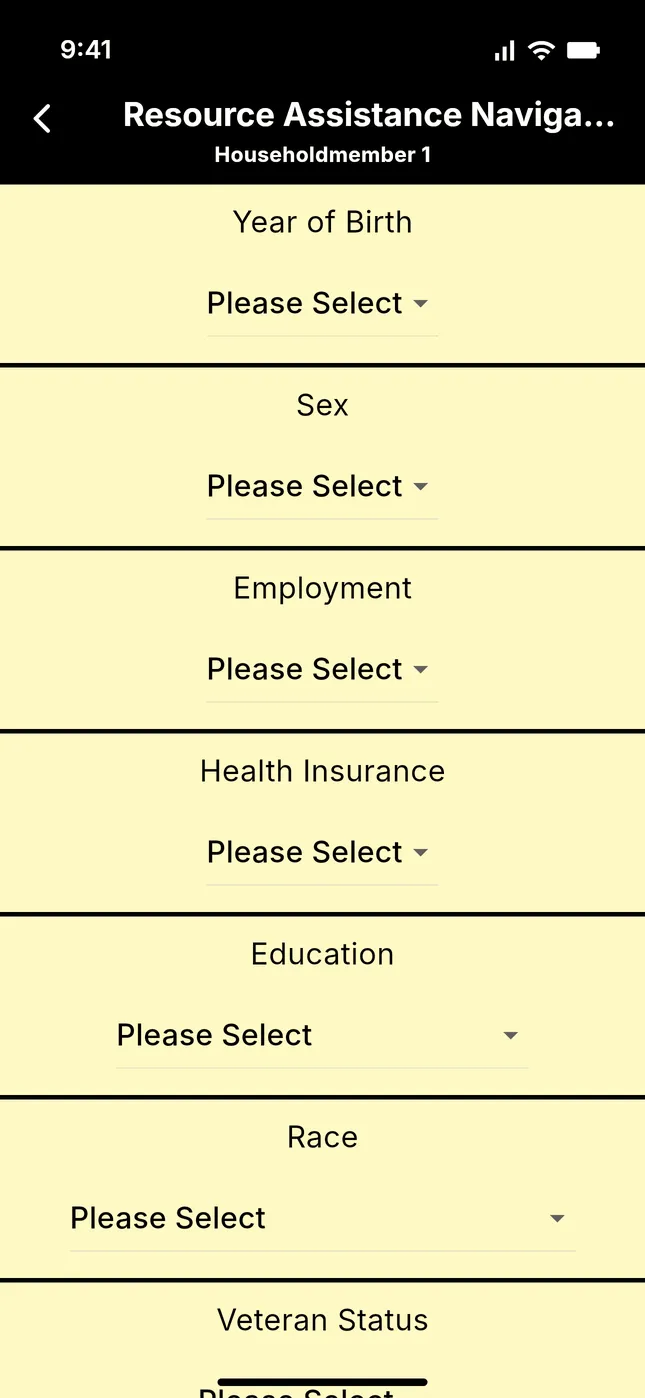
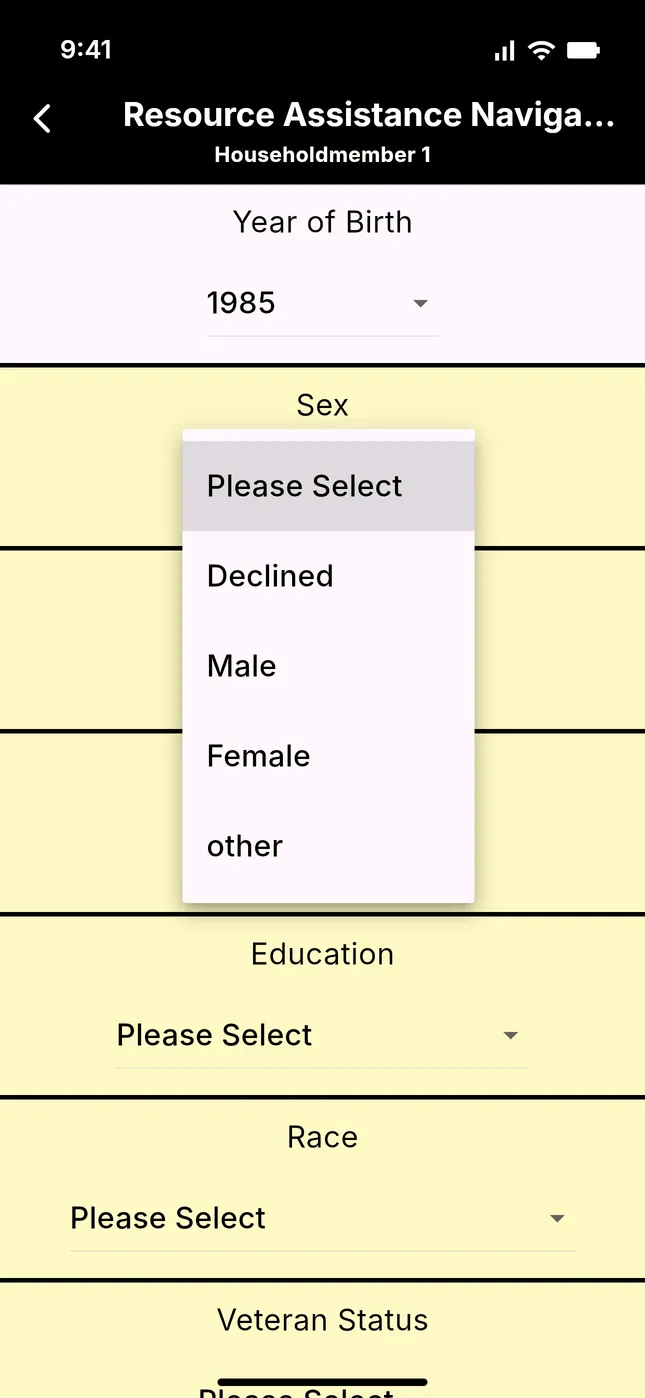
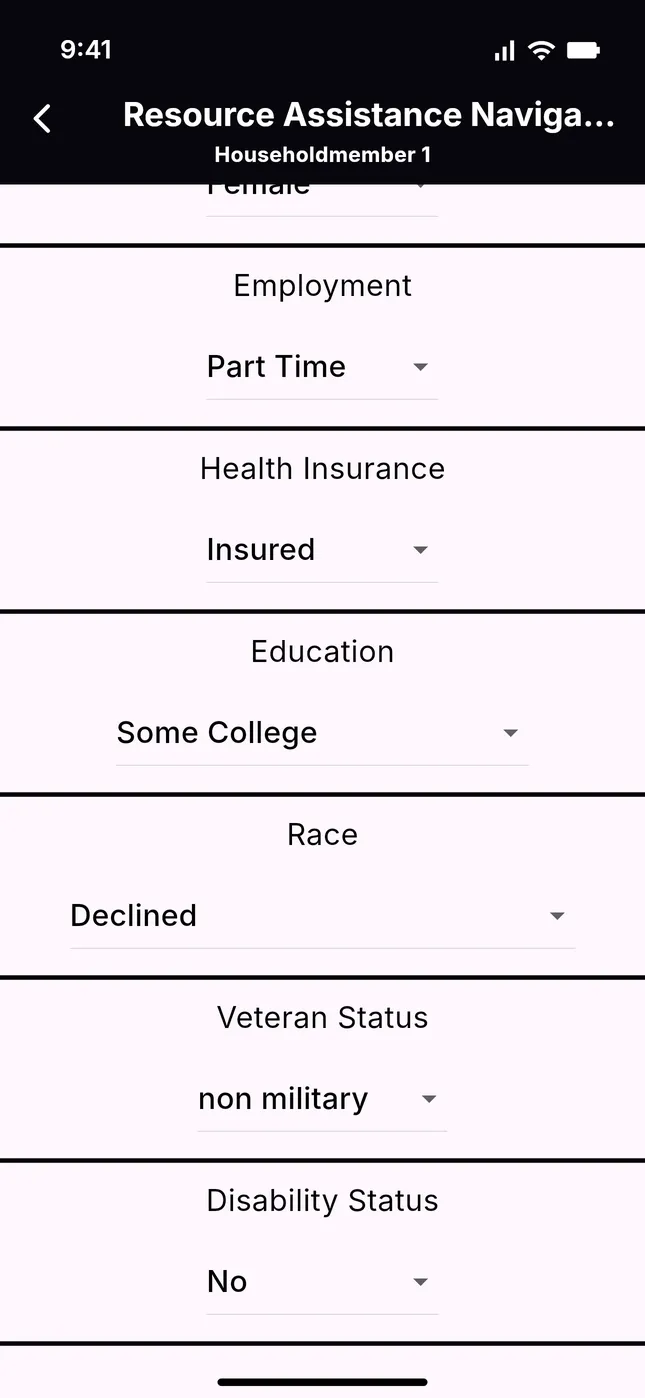
Every question can be answered with Declined if you prefer not to say.
10. Your privacy
- Your household information is stored only on your phone. It is not sent to the advertising network.
- It travels encrypted inside the QR code to the agency's scanner and is stored encrypted on the servers.
- Agencies and the food bank receive finished reports (for example how many households they served). Nobody can browse your information.
- Household details are used only anonymized for reports, for example grant reports.
The full privacy policy: Privacy Policy. The USDA nondiscrimination statement: gra4u.org/usda-nondiscrimination-statement.
If you uninstall the app or change phones, your information is not moved. Install the app on the new phone and enter your information again.
11. Questions and help
| Problem | What to do |
|---|---|
| The scanner can't read my code | Turn up the screen brightness, hold the phone still and clean the screen. |
| Missing Information when confirming | The message lists what is missing: the name, a 5-digit ZIP code or at least one program. |
| No Connection Detected | Check your mobile data or WiFi and start the app again. |
| I want to change my information | ☰ → Input Main Data, or answer Yes to Changes? at the next start. |
| Which agency can I go to? | See gra4u.org/participating-agencies. |
| Am I eligible? | See the income table on gra4u.org/eligibility. |
Call 1-844-336-6348 (844-FFOOD4U) or write to support-ran-client@gra4u.org.